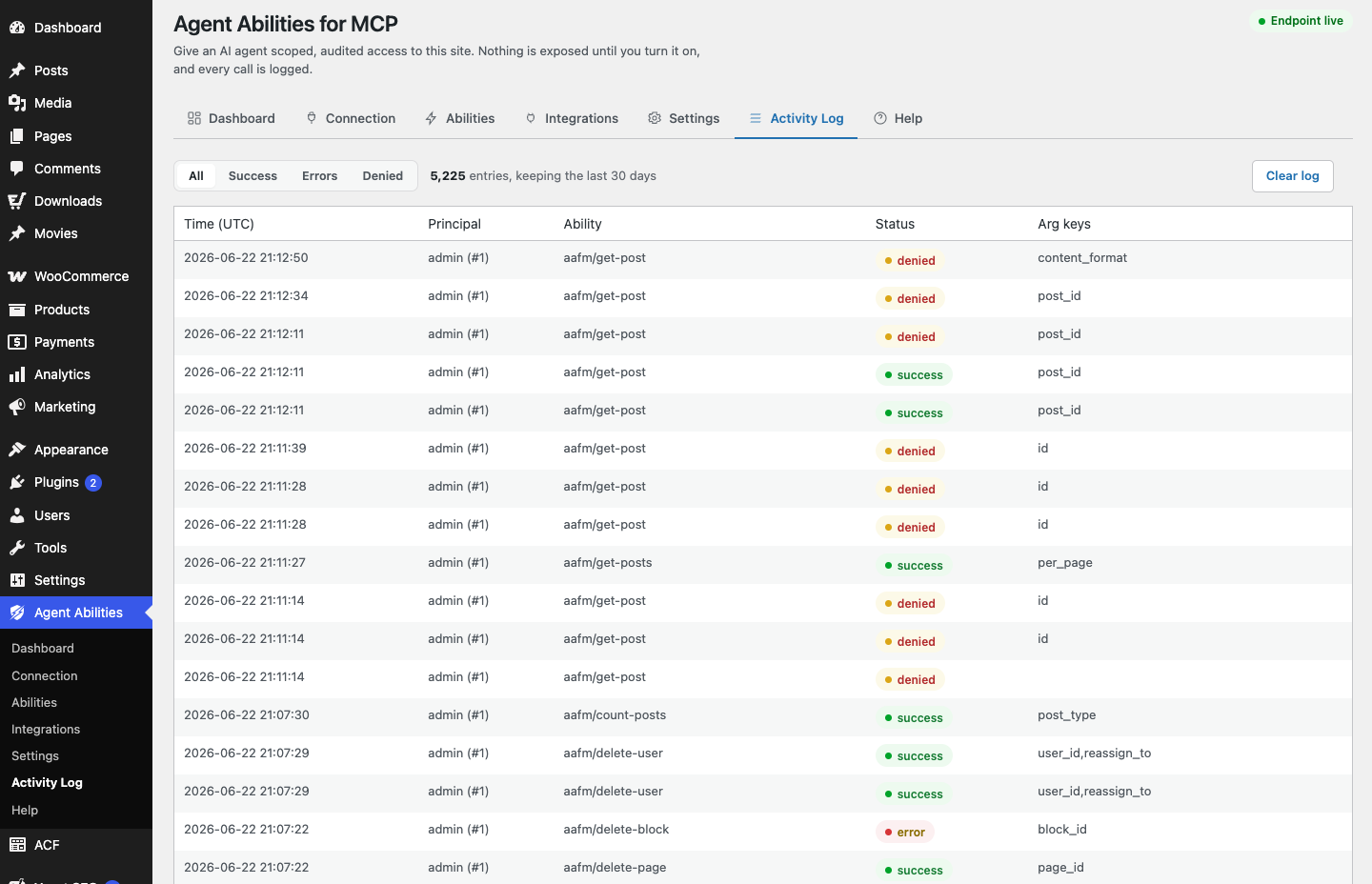
This is a walkthrough of the Activity Log tab in Agent Abilities for MCP, which since 1.9.0 can be filtered by user, connection, tool, plugin, date and text. It covers the admin screen only.
Takeaways:
- Filter first, then read. A connection plus a date range answers most questions.
- A denied row says why the call was refused, in the admin log only. The agent never sees the reason.
- The IP is the address the request came from, which behind a CDN is the CDN. Duration is time inside the tool, and denied calls have none.
- Export CSV downloads the rows the filters show, not the whole log.
How do I see what an AI agent did on my WordPress site?
Go to the plugin’s Activity Log tab. Each call to one of the plugin’s tools is a row with who made it, which tool, whether it succeeded or was denied, and how long it took. Use the filters to narrow the rows, and Export CSV to keep a copy.
Step 1: start with the summary
The top of the tab summarizes the last 7 days: total calls, success rate, denied, errors and the most-called tools. The screen notes that it counts agent tool calls only, refreshes about once a minute, and shows times in UTC.
A high denied count or an unfamiliar tool at the top of the list is a reason to keep going. A quiet summary is a reason to check that the agent is reaching the site at all, which your agent signs in, then nothing happens covers.
Step 2: filter to the part you care about
Set the filters, then click Apply or press Enter. Typing alone changes nothing, and Reset clears them.
| Filter | What it matches |
|---|---|
| User | The WordPress user’s login the agent acted as |
| Connection | One connected app, or “App Password or direct” for calls that did not come through an app |
| Tool | A tool name such as aafm/get-posts |
| Plugin | This plugin’s core tools, one integration such as WooCommerce, or other plugins’ tools it bridges |
| From and To | A date range, in UTC |
| Search | Text in the tool name, the note, the user or the app ID |
The status tabs (All, Success, Errors, Denied, Started) sit above the filters and combine with them. The Connection list shows the first 50 apps, and the Search box matches an app’s ID for the rest. On a very large log, add a date range, because the text search and user filter have no index.
The log keeps 30 days by default, and the count next to the status tabs says how long yours keeps. Older rows are removed.
Step 3: read a row
| Column | What it shows |
|---|---|
| Time (UTC) | When the call happened |
| Principal | The WordPress user, with their ID |
| Connection | The app’s name and the start of its ID, or “App Password or direct” |
| Event | The tool called |
| Detail | A short note of what it touched: ids, meta key names, slugs and status values |
| Status | Success, error, denied or started |
| Duration | Time spent inside the tool |
| IP | The address the request came from |
| Arg keys | The names of the arguments sent, never their values |
Detail never holds free text. If an agent updates a post, the row names the post, not its body. What the audit log actually stores explains why that line exists.
OWASP’s Logging Cheat Sheet says a useful log records “when, where, who and what” for each event, with the source address as part of who. The Activity Log covers the same ground: the time, the user and connection, the source address, and the tool with its status and note.
Step 4: read the denied rows
Filter the Status tab to Denied. A denied call never ran, so its row has no duration, and its Detail ends with the reason it was refused. The reasons come from a fixed list:
| Reason in the log | Where to look |
|---|---|
| key is not on the allowlist | The meta key allowlist, when a call tried to read or write a meta key |
| key is on the deny list | The meta key deny list |
| key is protected or reserved, or key is reserved by WordPress | A built-in block on those keys, not a setting |
| item missing or not editable by this user | Whether the item exists and the agent’s user can edit it |
| ability is not in this role or connection list | The per-role and per-connection allowlist in safety controls |
| rate limit reached | The per-minute rate limit on the Settings tab |
| a required argument was missing | The agent’s request, which left out something required |
| WordPress capability check failed | The agent user’s role |
| the source plugin check refused | The permission check of the plugin that owns a bridged tool |
The reason shows in the admin log and in the CSV. The message the agent receives is the same generic refusal as before, so a refused agent learns nothing about your rules. Reading a meta key now logs a note the way writing one does, so those attempts leave a trail too.
Step 5: treat the IP and the duration carefully
The IP is the address the request came from. Behind a proxy or CDN, that is the proxy. Cloudflare’s Restoring original visitor IPs page says the origin server normally sees a Cloudflare address, and that the visitor’s appears in the CF-Connecting-IP header. Do not read the IP column as a person’s location.
Duration is the time inside the tool, not what the agent experienced, so it is not how long the agent waited. Use it to spot a tool that is slow on your site.
Step 6: watch it live
Click Live to re-check page 1 every 10 seconds while the browser tab is visible. It follows the filters you applied and stops when you leave page 1, after three failed checks in a row, or after 15 minutes. If you have a text search or a user filter applied, Live needs a date range as well.
Live is useful while you test a new connection or watch an agent you do not yet trust.
Step 7: export what you found
Export CSV downloads the rows your current filters show. The columns are:
created_at, event_type, ability, detail, status, arg_keys, principal_login, principal_user_id, source_ip, client_id, result_count, duration_ms, connection_name
The file carries logins and IP addresses, so store it as you would any record about your users. The two newest columns, duration_ms and connection_name, are at the end, so existing column positions did not move.
What the log does not tell you
The log records calls to this plugin’s tools, including other plugins’ abilities it bridges. It does not record why an agent made a call, and it stores no free-text content. Tools that another plugin publishes straight to the MCP Adapter’s default server are outside it, as the 1.8.0 post explains.
An agent cannot use any of this. The ability that lets an agent read the log is separate from this screen. It did not gain these filters or columns, it has never returned the IP, and since 1.9.0 it leaves out refusal reasons and the rows about notification settings. To have an administrator-level agent read the log for you, switch on Get activity log and use this recipe.
If you would rather be told than look, alerts by email cover the moments worth knowing about. The full list of changes is in the 1.9.0 release post, and the FAQ has the short answers.